

Android phones are fantastic little computers that most of us use for many hours every single day. But over time, even the best smartphone can start to feel slow, sluggish, and less efficient. Apps pile up, storage space fills up, and the system has to work harder to keep up. Fortunately, there are many simple methods and smart iPhone and Android features that can give your phone new life and make it both faster and more user-friendly.
This guide is written for you if you want to get the most out of your phone without having to buy a completely new model. With just a few adjustments, you can significantly improve performance, optimize battery consumption, and enjoy a much smoother everyday experience. Hidden Android options, practical shortcuts, and simple cleanup routines can together make a surprisingly big difference.
The goal is to give you specific and practical tips for Android phones that you can implement right away. Whether you use a Samsung, OnePlus, Xiaomi, or another Android phone, these principles can be applied broadly. Once you learn how to streamline the system and make use of the right Android solutions, you will find that your smartphone once again feels like an efficient tool rather than a source of frustration.
Many people believe that a slow phone is simply a sign of age. In reality, it is often about settings, habits, and lack of maintenance. By understanding how the Android system works and how to manage your installed programs, you can take back control and enjoy a more efficient Android experience in everyday life.
Read on through the following sections, where we go through the most important areas you should focus on if you want to make your phone faster and more efficient. With the right approach, you can make sure that your Android phone works for you – quickly, reliably, and smartly.
Remove Unnecessary Apps and Files From Your Android Phone

Over time, most Android phones collect a large number of apps, photos, videos, and files that you may no longer use at all. These not only take up unnecessary space on your phone, but can also make it slower and less efficient. By cleaning up regularly, you can free up storage space, improve performance, and extend the lifespan of your phone.
Start by reviewing your apps: Delete the ones you have not opened for months or that simply take up space without adding any value. Also remember that many apps leave behind data and cache files that can be cleared under Settings → Storage. The same applies to files such as old downloads that you no longer use.
To optimize even further, you can use the built-in cleanup tools found on most Android phones, or install a lightweight app that helps you identify large files you can do without. When you keep your phone free from unnecessary content, you will not only experience better performance – your phone will also become more organized and easier to use in everyday life.
Inspiration List – How to Clean Up Your Android Phone
🗑️ Delete apps on your Android phone that you no longer use.
🧹 Clean up the Downloads folder, where old files often pile up on your Android phone.
📸 Review photos and videos on your Android phone, and delete duplicates or failed shots.
🔎 Use your Android phone's built-in storage analysis to find large files.
🧩 Clear app cache and temporary files through the settings on your Android phone.
☁️ Transfer photos and files to cloud storage (Google Photos, OneDrive, etc.) to free up space on your Android phone.
📂 Organize folders so you can quickly find the files you actually need on your Android phone.
Disable or Limit Background Processes on Your Android Phone

One of the biggest reasons Android phones can feel slow or quickly run out of battery is background processes. Many apps continue running even when you are not actively using them – checking for updates, sending notifications, or refreshing data in real time.
Although some background processes are useful, too many of them can put a strain on both the battery and memory. Fortunately, Android allows you to limit or disable background activity for apps that you do not need running all the time.
This can be done under Settings → Apps → Background Activity, where you can control which apps are allowed to work in the background. By taking control of background processes, you will often notice a clear improvement in your phone's speed and battery life. This makes your Android device more efficient and gives you a better user experience in everyday life.
Inspiration List – How to Limit Background Processes Effectively on Your Android Phone:
🔋 Turn off background activity for apps on your Android phone that you rarely use.
📱 Disable auto-start for unnecessary apps through settings or your Android phone's optimization tools.
🌐 Limit apps on your Android phone that constantly use data, such as social media and news apps.
🧩 Use “Power Saving Mode” to automatically limit background processes on your Android phone.
🚀 Consider uninstalling apps on your Android phone that use a lot of resources in the background.
🔎 Monitor battery usage by app under Settings → Battery on your Android phone to identify the biggest “power drainers.”
📅 Regularly clean up your Android phone and check whether new apps are unnecessarily running in the background.
Update Your Android Phone's Software
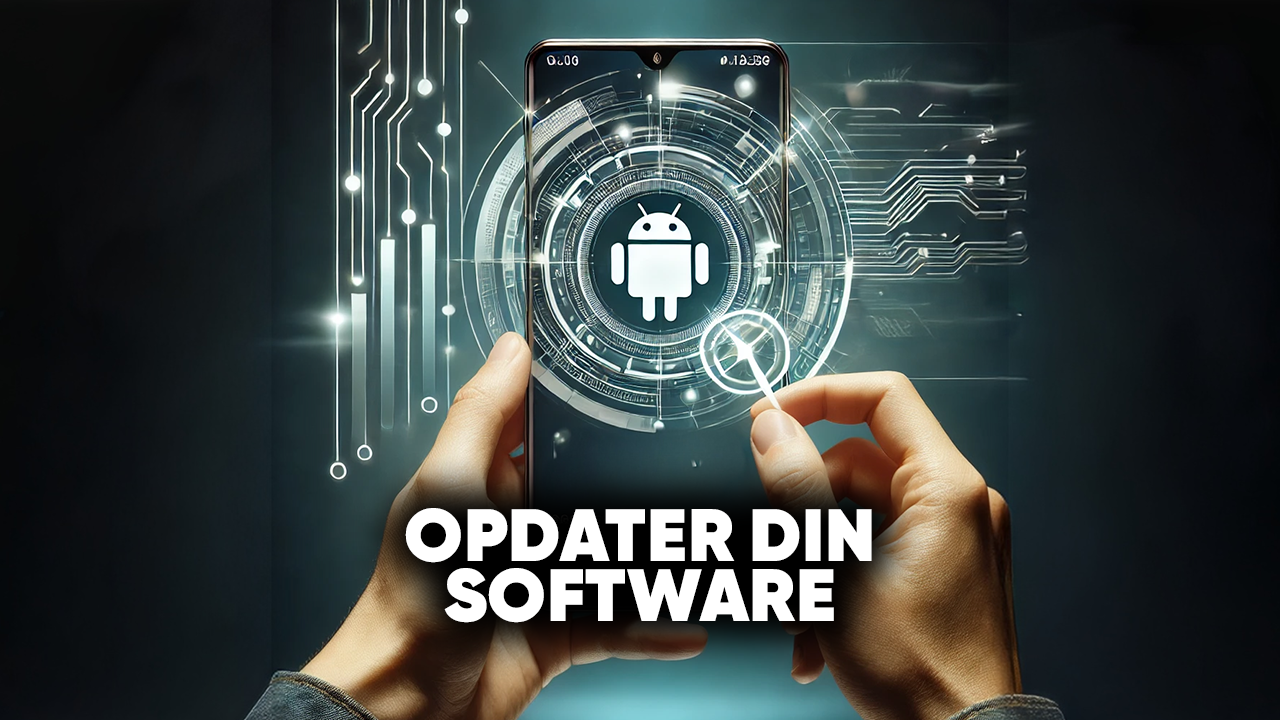
One of the most effective ways to keep your Android phone fast and secure is to make sure it always runs the latest software. Software updates contain not only new features, but also bug fixes, security updates, and performance improvements.
Many users postpone updates because they feel they take time or because they are concerned about changes to the appearance and features. But by ignoring updates, you risk your phone becoming slower, more vulnerable to security threats, and less efficient to use.
You can easily check for updates under Settings → System → System Update. Here you can see whether a new version is available and schedule the update for a time when you do not need the phone. Keeping the software up to date is a simple habit that ensures your Android phone performs optimally and remains reliable in the long term.
Inspiration List – Benefits of Updating Your Android Phone
🚀 Better performance and a faster user experience on your Android phone.
🔒 Increased protection against malware and hacker attacks on your Android phone.
🐞 Fixes for errors and bugs that can make your Android phone slow or unstable.
🌟 Access to new features and improvements from the manufacturer on your Android phone.
📱 Extended lifespan for your Android phone because it stays updated with the latest standards.
⚡ Often better battery management and more efficient use of resources on your Android phone.
📅 Option for automatic updates on your Android phone, so you do not have to remember them yourself.
Optimize the Home Screen on Your Android Phone

The home screen is the first thing you see when you turn on your Android phone – and it works as your personal control center. But if it is cluttered with too many apps, widgets, and shortcuts, it can make your phone slower and harder to navigate. By optimizing the home screen, you can create a faster, more organized, and more efficient mobile experience.
A simple way to start is by removing unnecessary apps and keeping only those you use daily on the home screen. You can organize apps into folders so you can easily find them by category, such as work, social media, or games. Widgets can be useful, but they also use resources – so choose only the ones you really need, such as a calendar or weather widget.
Many Android phones also allow you to change the layout, icon size, and even use an alternative launcher if you want an even more customized experience. When you keep the home screen simple and functional, you not only reduce the load on the phone, but also create a better and faster user experience in everyday life.
Inspiration List – How to Optimize the Home Screen on Your Android Phone
📂 Organize apps into folders by theme or function on your Android phone.
🧹 Remove apps from the home screen on your Android phone that you do not use every day.
📅 Use only necessary widgets on your Android phone, such as a calendar, weather, or to-do lists.
🎨 Customize the layout and icon sizes on your Android phone for a more organized look.
🚀 Use a lightweight launcher to make your Android phone faster.
🔎 Place your most frequently used apps on the first page of your Android phone for quick access.
🌱 Keep the screen minimalist on your Android phone – the fewer distractions, the more efficient the experience.
Clear RAM and Close Unwanted Apps on Your Android Phone

If your Android phone feels slow or responds sluggishly, it is often because too many apps are running in the background and using RAM. RAM is the temporary memory your phone uses to keep apps and processes active. When it becomes full, both speed and battery performance can be affected.
A quick solution is to clear RAM and close unwanted apps. You can do this by opening the recent apps overview and closing the apps you no longer need. Many Android phones also have a built-in “Clear RAM” or “Optimize” function in the settings that can free up memory with a single tap.
Clearing RAM does not mean deleting anything – it simply gives your phone a “fresh boost” and makes it more responsive. If you do it regularly, especially when you notice that the phone is becoming slow, you can maintain its performance and avoid unnecessary frustration.
Inspiration List – How to Keep RAM and Apps Under Control on Your Android Phone
🧹 Use your Android phone's built-in “Clear RAM” or “Optimize Device” function.
📱 Manually close unused apps on your Android phone in the recent apps overview.
🚫 Remove apps from your Android phone that constantly run in the background but that you rarely use.
🔎 Keep an eye on which apps use the most RAM on your Android phone under Settings → Battery or Memory.
⚡ Restart your Android phone regularly – this frees up memory and stops hidden processes.
🌱 Only install the apps on your Android phone that you actually need, and avoid “heavy” apps that drain RAM.
🚀 Use a lightweight launcher or lite versions of apps, such as Facebook Lite, on your Android phone to save resources.
Activate Power Saving Mode on Your Android Phone
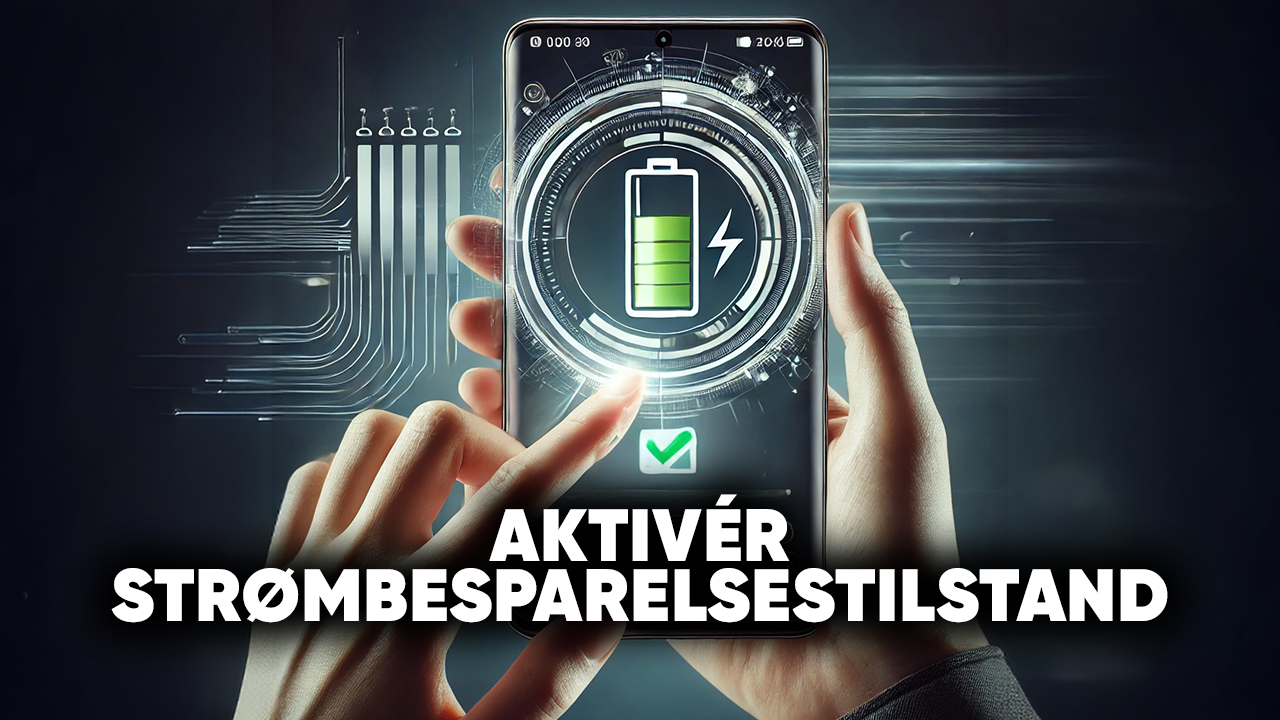
One of the most effective ways to extend the battery life of your Android phone is to use Power Saving Mode. When it is activated, background activity is reduced, certain visual effects are turned off, and the phone prioritizes only the most important functions. This means you can still use the phone for calls, messages, and essential apps without the battery draining unnecessarily fast.
Most Android devices offer both a standard power saving mode and an “extreme” version where only the most basic functions remain active. This can be a lifesaver if you are away from home without a charger or need the battery to last an entire day while traveling.
By activating Power Saving Mode, you not only get more out of your battery – you also reduce the load on the phone, which can make it faster and more stable when the battery level is low.
Step-by-Step Guide – How to Activate Power Saving Mode on Your Android Phone
⚙️ Open Settings on your Android phone.
🔋 Find and tap Battery (or Device Care on some models such as Samsung).
⚡ Select Power Saving Mode or Power Saving.
🟢 Tap the switch to activate the feature.
⚙️ On some Android phones, you can customize what should be limited, such as background apps, brightness, and network use.
🚀 If available on your Android phone, you can also select Extreme Power Saving to extend
Inspiration List – How to Use Power Saving Mode Effectively on Your Android Phone
🔋 Activate the feature on your Android phone when you know you will not be able to charge for a long time.
📱 Use it when the battery level is low to extend the operating time of your Android phone.
🌙 Combine it with lowering the screen brightness for an even better effect on your Android phone.
📶 Turn off Wi-Fi, Bluetooth, and GPS if you are not using them on your Android phone.
🚀 Select “Extreme Power Saving” on your Android phone during travel days or emergencies.
🧩 Customize the settings on your Android phone so that only your most important apps remain active.
📊 Use power saving regularly to help extend the overall battery life of your Android phone.
Restart Your Android Phone Regularly

Although modern Android phones are designed to run for a long time without problems, a simple restart can work wonders for both speed and stability. When you restart your phone, all temporary processes, background tasks, and minor errors that may have built up over time are closed. The result is often a more responsive phone with better performance.
Restarting works a little like giving your phone a “fresh start.” It frees up RAM, clears temporary caches, and can solve minor software problems, such as apps freezing, the battery draining faster than normal, or the phone feeling slow. You do not need to do it every day, but restarting once a week can be enough to ensure that your Android phone runs more smoothly and efficiently. It is one of the easiest habits you can adopt to keep your phone in top condition.
Inspiration List – Benefits of Regularly Restarting Your Android Phone
🚀 A faster and more responsive experience on your Android phone.
🧹 Frees up RAM and closes background processes on your Android phone.
🔋 Can improve battery life on your Android phone by stopping hidden power-draining processes.
🐞 Restarting often fixes minor software errors and temporary “bugs” on your Android phone.
📱 Helps prevent apps from freezing or running unstably on your Android phone.
🌐 Improves network or Bluetooth connections by resetting the system on your Android phone.
🌱 An easy habit that keeps your Android phone efficient without extra apps or tools.
Disable or Remove Bloatware on Your Android Phone

Many Android phones come with pre-installed apps that you may never need – often referred to as bloatware. These may include the manufacturer's own apps, extra games, or services from your mobile carrier. These apps take up storage space, may run in the background, and in some cases can even affect battery life.
Although you cannot always delete bloatware completely, in most cases you can disable it so that it no longer runs or takes up space on your home screen. This allows you to free up resources and make your phone simpler to use.
If an app can be uninstalled, it is a good idea to do so – especially if it simply takes up space without providing value. By cleaning up bloatware, you get a faster, more efficient, and more personalized Android experience where only the apps you actually need take up space on your phone.
How to Remove Bloatware From Your Android Phone:
Go to Settings > Apps, find the bloatware apps, and disable them.
If you have root access, you can completely remove unwanted system apps.
Inspiration List – How to Manage Bloatware Effectively on Your Android Phone
📱 Review the list of pre-installed apps on your Android phone and delete the ones you never use.
🚫 If deleting is not possible, disable the app on your Android phone through Settings → Apps.
🔋 Remove apps from your Android phone that unnecessarily use battery power in the background.
📂 Hide useless apps from the home screen on your Android phone if they cannot be disabled.
🧹 Use your Android phone's storage analysis to see how much space bloatware takes up.
🚀 Replace bloatware with lighter alternatives from Google Play, such as a lighter browser, calendar, or email app, on your Android phone.
🌱 Focus on the apps on your Android phone that genuinely make everyday life easier – everything else can be removed or disabled.
Use Lite Versions of Apps on Your Android Phone

Many popular apps are available in so-called Lite versions, which are designed to use fewer resources and less storage space. These versions are especially designed to work on phones with less RAM or weaker processors – but they can benefit anyone who wants a faster and more efficient Android phone.
Lite apps typically take up only a fraction of the space of the full app and use less data. They include the most essential features, but without the heavy elements that often make the regular version slower. This makes them ideal if you mainly use the basic features of an app, such as sending messages, checking emails, or browsing social media.
By switching to Lite versions, you can free up space, save battery power, and make your mobile experience smoother – without sacrificing the features you actually need.
Inspiration List – Examples of Useful Lite Apps for Your Android Phone
📘 Facebook Lite – Lower data usage and faster loading.
📸 Instagram Lite – Only the most important features, but much lighter for your Android phone.
✉️ Messenger Lite – Sends messages without the heavy extra features.
📧 Gmail Go – A lighter version of Gmail for faster email management.
🌍 Google Maps Go – Smaller, but still effective for navigation and searches.
🔎 Google Search Lite – Faster searching with low data usage.
🎶 Spotify Lite – A lighter music app for simple streaming without unnecessary features.
Factory Reset as a Last Resort on Your Android Phone

If your Android phone continues to be slow, freezes, or experiences serious errors, a factory reset may be the last solution. A factory reset restores your phone to its original settings and deletes all apps, files, and data, making it appear almost like new.
Although it may seem drastic, a factory reset can often solve problems that cannot be fixed through ordinary cleanup or software updates. However, it is important to remember that you will lose all personal data during the process – therefore, you should always make abackup of photos, contacts, messages, and other important files before getting started.
How to Perform a Factory Reset on Your Android Phone
📉 Go to Settings > Backup and Reset > Factory Reset.
📉 Remember to back up your data before resetting.
📉 After the reset, you can reinstall the apps you actually need and avoid restoring unnecessary content. This gives you a faster, cleaner, and more efficient mobile experience.
Inspiration List – When a Factory Reset May Be Relevant on Your Android Phone
📉 When your Android phone continues to be slow despite cleanup and updates.
🐞 When there are persistent errors that cannot be solved through normal troubleshooting on your Android phone.
📱 If apps constantly freeze or crash on your Android phone.
🔒 When you want to start completely fresh and install only the most necessary apps on your Android phone.
🔄 Before selling or giving away your Android phone, to protect your personal data.
🚀 When you want to give your Android phone a “fresh start” without hidden errors and unnecessary files.
☁️ If you have backed up your Android phone to your Google account and can quickly restore the most important content afterward.
Conclusion

Keeping your Android phone fast and efficient does not necessarily require new apps or advanced technical solutions. Often, it is about making better use of the built-in features and making small but important adjustments in everyday life. By cleaning up unused apps and files, limiting background processes, updating the software, and optimizing the home screen, you can experience a noticeable improvement in both speed and stability.
It is a good idea to think of your phone as a tool that needs to be maintained just like a computer. Small habits – such as restarting regularly, using Lite apps, and activating power saving mode – can extend the lifespan of your device and provide a smoother overall experience.
AND REMEMBER – If everything else fails, a factory reset is always an option to give your phone a fresh start. This way, you can continue to get the most out of your Android phone without it feeling slow or cluttered with unnecessary distractions. 🚀📱
Mini Guide – How to Make Your Android Phone Faster and More Efficient
A slow or laggy Android phone can quickly become a daily annoyance, but fortunately, there is a lot you can do yourself before considering buying a new phone.
This mini guide is a summary of the article above and gives you a complete overview of the most important areas to focus on if you want an Android smartphone that responds faster, uses fewer resources, and feels more efficient in everyday life. The guide is practical, easy to follow, and can be used whether your Android device is new or several years old.
🧹 Clean Up Apps and Background Processes on Your Android Phone
One of the most effective ways to make your Android phone faster is to review your installed apps. Many apps run in the background even if you rarely use them, placing a load on both memory and the processor. Regularly review your apps, uninstall the ones you no longer need, and close apps that are running unnecessarily. When your Android phone only uses resources for what is relevant, it will feel noticeably more responsive in everyday use.
📦 Free Up Storage Space for Better Performance on Your Android Phone
Lack of storage space is an often-overlooked reason why an Android phone becomes slow. When the internal storage is nearly full, the system has a harder time operating efficiently. Delete old photos, videos, downloads, and apps you do not use. You can also consider moving files to cloud storage. More free space gives your Android smartphone better working conditions and can noticeably improve speed and stability.
🔄 Keep the System and Apps Updated on Your Android Phone
Updates are not only about new features – they often include optimizations and bug fixes that make your Android phone more efficient. Make sure both the operating system and apps are up to date so you can benefit from improved performance and better resource utilization. An updated Android device generally runs more reliably and securely than one with outdated software.
⚙️ Adjust Animations and Visual Effects on Your Android Smartphone
The Android system uses animations and transitions that look attractive but also require resources. By reducing or disabling animations in the Developer Options, your Android phone can feel faster even though the actual hardware remains the same. It is a simple adjustment that is especially noticeable on older Android phones, where every small optimization can make a difference.
🔋 Optimize Battery and Power Consumption on Your Android Phone
Apps with high power consumption often work intensively in the background and can make your Android phone slower. Review the battery settings and see which apps use the most energy. Limit background activity for the biggest power drainers, and consider using Android's built-in battery optimization. More efficient power management provides both better battery life and a faster experience.
🔐 Use a Lightweight and Efficient Home Screen on Your Android Phone
Widgets, live wallpapers, and heavy launchers can place unnecessary strain on your Android phone. A simpler home screen with fewer widgets and a lightweight launcher can make a surprisingly big difference. When your Android phone does not constantly have to update graphics and background elements, resources are freed up for the tasks you actually use the phone for.
🔁 Restart Your Android Phone Regularly
Although it sounds simple, restarting regularly can work wonders. Over time, temporary processes and small errors accumulate in memory, which can make your Android phone slower. Restarting cleans up the system and gives your Android smartphone a fresh start, often resulting in better speed and fewer minor problems.
🛡️ Avoid Heavy Cleaner and Booster Apps on Your Android Phone
Many apps promise to make your Android phone faster, but in practice they often do the opposite. They use resources themselves, display advertisements, and may constantly run in the background. The Android system is already designed to manage memory and performance efficiently, so it is better to focus on manual adjustments and built-in tools rather than external “speed booster” apps.
***********************************************************************
This mini guide can be used as a regular checklist whenever your Android phone starts to feel slow or inefficient. Small adjustments can add up to make a noticeable difference.
✅ Here Are 3 of the Most Important Habits for a Faster Android Phone:
🧹 Clean Up Your Android Phone Regularly – Remove unused apps, files, and bloatware.
🔋 Optimize the Performance of Your Android Phone – Limit background processes and use power saving mode.
🔄 Maintain the System on Your Android Phone – Update the software and restart regularly.
***********************************************************************************
If you need more tips for your Android phone, you can watch this video – Make Your Android Phone Faster – Here's How You Can Do It
------------------------------------------
If you have experience and/or knowledge of useful but not particularly well-known Android phone features that can make the phone more efficient, we would be happy to hear your input and/or suggestions in the comments section about other useful features on your Android phone that can make it more efficient, so you can make better use of your phone's functions every day.