When you use your iPhone in everyday life, it may already feel like an indispensable tool. But very few people realize just how many smart and hidden features are tucked away beneath the surface. Over the years, Apple has packed the iPhone with small shortcuts, automations, and settings that can make your phone much more efficient, faster to work with, and more personalized to use.
Many of these features are not immediately visible, and they are rarely mentioned when you buy a new phone. As a result, they end up being like little secrets known only to particularly curious users. These can include everything from hidden keyboard tricks and advanced search options to practical tools that save you several taps every single day.
In this article, we calmly and simply guide you through a number of the most useful iPhone features that you may never have tried before. The goal is to give you practical tips that can improve your daily iPhone experience without the need for additional apps or technical expertise.
Whether you are new to the iPhone world or have owned one for years, there is a very good chance that you will discover possibilities that can make your iPhone more efficient than you thought possible. Read on and get inspired to get even more out of the phone you already have in your pocket. With the right knowledge, your iPhone can become an even more powerful tool in your everyday life.
Hide Unwanted Apps Without Deleting Them on Your iPhone
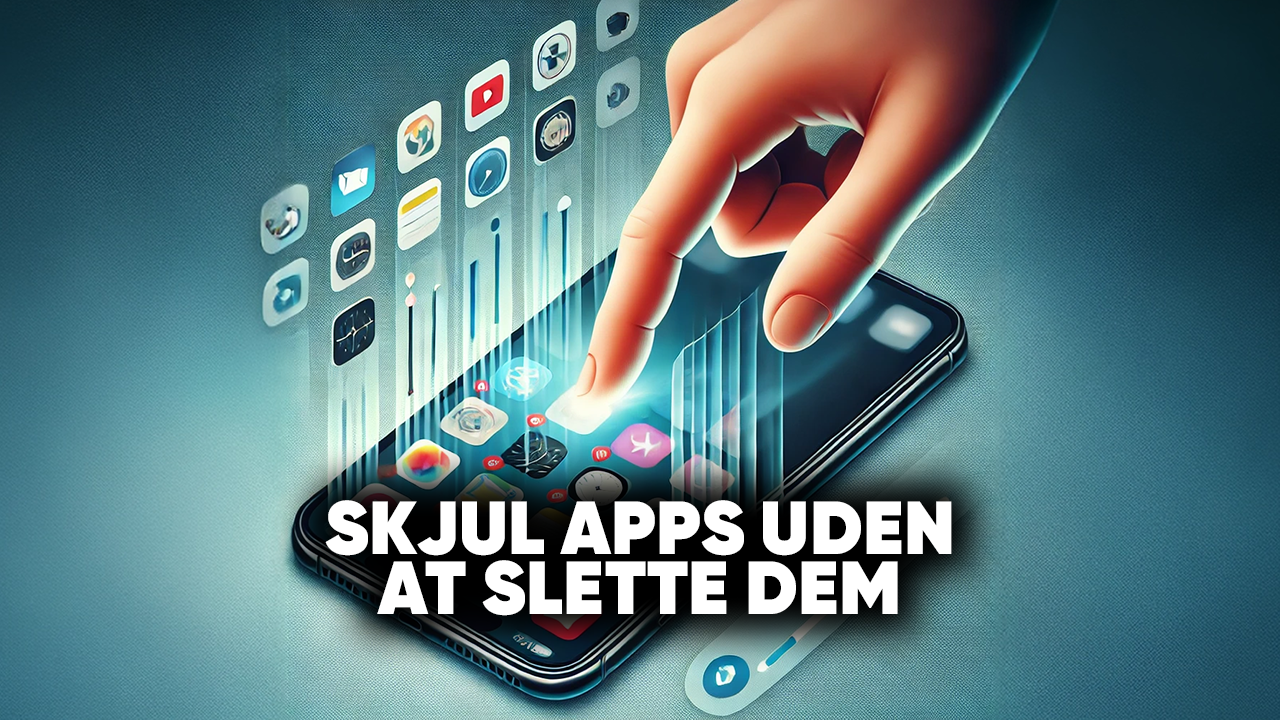
Your iPhone comes with many pre-installed apps that you may never use but that still take up space on your Home Screen. Instead of deleting them – or if deleting them is not possible – you can easily hide them so that your phone becomes more organized and efficient in everyday use.
iOS allows you to remove apps from the Home Screen without deleting them completely. This way, you can keep the app in case you need it later while making your iPhone look more organized. You can either store apps in the App Library, place them in folders, or use Screen Time settings to hide certain types of apps.
Hiding unwanted apps gives you a more minimalist and focused layout, which can make it easier to find the apps you actually use in everyday life. It can also be useful if you want to hide apps of a private nature.
Inspiration List – How You Can Hide Apps on Your iPhone Without Deleting Them
📂 Move the app to a folder on your iPhone and place it on a page you rarely use.
📱 Use the iPhone App Library (swipe to the right on the Home Screen) and remove the app from the Home Screen.
⏱️ Use Screen Time settings on your iPhone to restrict or hide certain apps.
👀 Hide entire iPhone Home Screen pages containing apps you do not use.
🔎 Use Spotlight Search on your iPhone to quickly find hidden apps when you need them.
🌱 Create a layout on your iPhone where only the most essential apps are visible on your Home Screen.
Use the Hidden Trackpad Feature in Your iPhone Keyboard
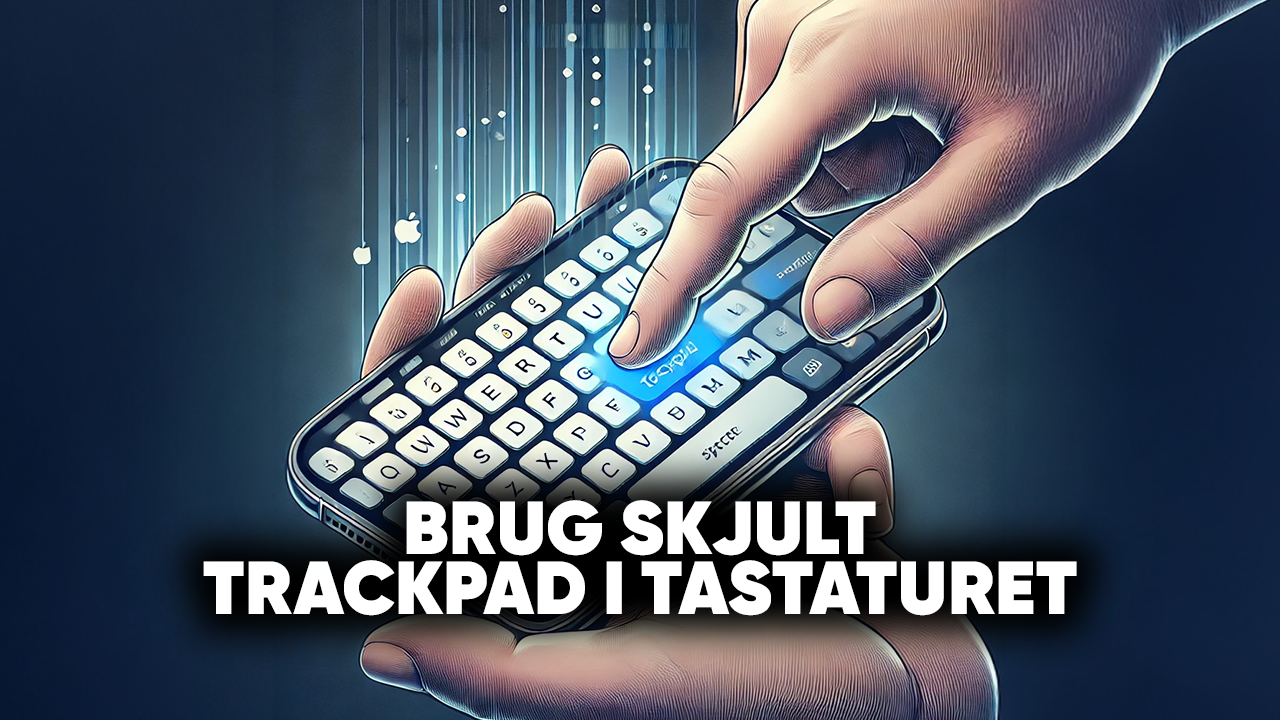
Placing the cursor precisely within text can be frustrating, especially on a small screen. Fortunately, the iPhone has a hidden trackpad feature built into the keyboard that makes editing text much easier. The feature transforms the entire keyboard area into a kind of “touchpad,” allowing you to move the cursor quickly and precisely – almost like on a computer.
To activate the feature, simply hold your finger down on the space bar. When the keys become blank, you can move your finger around the keyboard to control the cursor. If you press a little harder (on iPhones with 3D Touch) or press again, you can even select text, making it easier to copy, paste, or delete.
This feature is especially useful when working with longer messages, documents, or emails where accuracy matters. It saves time, minimizes errors, and makes text editing on your iPhone much more efficient.
Inspiration List – How You Can Use the Trackpad Feature on Your iPhone Effectively
📝 Use the trackpad feature on your iPhone to edit emails faster by positioning the cursor precisely in the text.
💬 Use the trackpad feature on your iPhone to correct mistakes in long messages without wasting time.
📖 Use the trackpad feature on your iPhone to make note-taking easier by selecting and moving text.
📖 Combine the trackpad feature on your iPhone with “copy/paste” to work smarter with text.
👀 Use the trackpad feature on your iPhone to avoid frustrating taps directly on the text – the trackpad feature is far more precise.
🚀 Use the trackpad feature on your iPhone in any app with a keyboard – from Messages and Notes to Mail and Word.
Automate Tasks With the Shortcuts App on Your iPhone
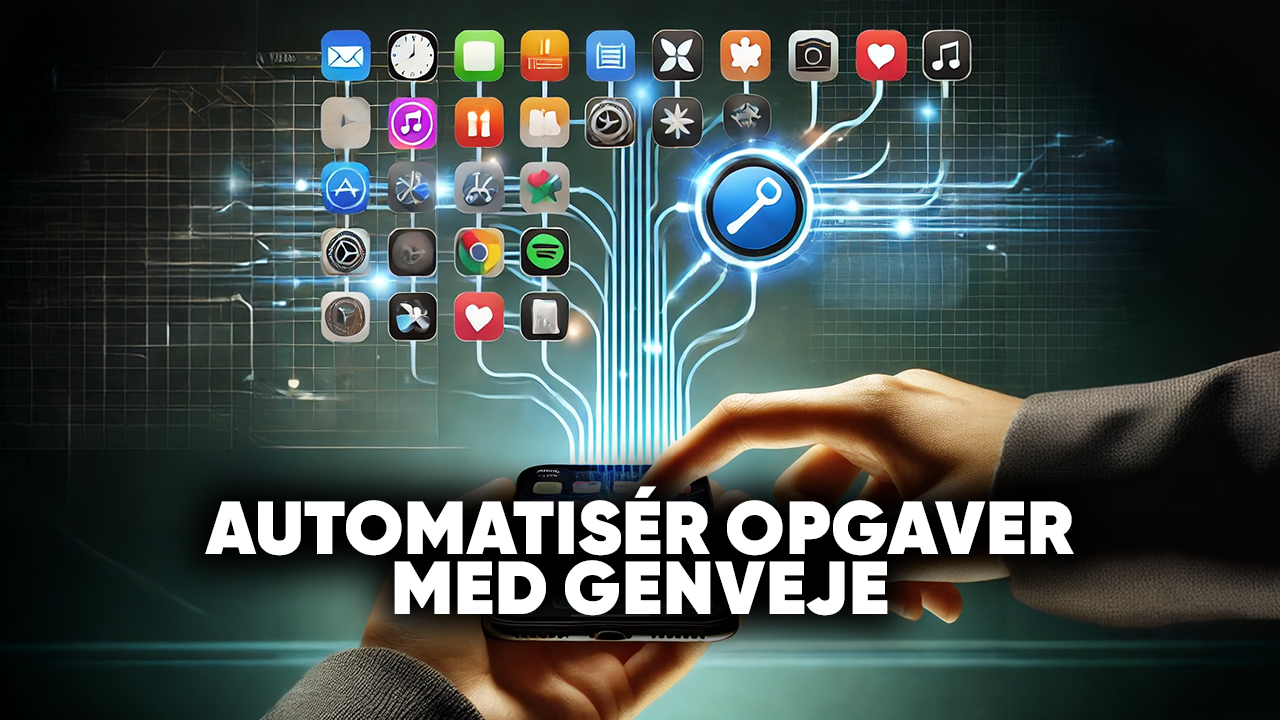
If you want to save time and make your iPhone more efficient, the Shortcuts app is one of the most powerful – and often overlooked – tools. With Shortcuts, you can automate daily tasks and combine multiple actions into a single tap or voice command through Siri.
The app allows you to create small “programs” without needing to know how to code. For example, you can create a shortcut that turns on “Do Not Disturb,” sends a message to a specific person, and starts a playlist – all at once. You can also automate actions so that they happen automatically based on time, location, or activity, such as having your iPhone dim the lights when you start a movie or send you a reminder when you leave your home.
The Shortcuts app makes your iPhone much more personal and efficient because you can customize it to suit your specific routines. Once you get started, you will quickly discover how many repetitive tasks can be handled completely automatically.
Inspiration List – Examples of Smart Shortcuts You Can Create on Your iPhone
⏰ Create a morning routine on your iPhone that turns off the alarm, reads the weather aloud, and starts your favorite podcast.
🏃 Create a workout shortcut on your iPhone that opens your fitness app and starts a motivational playlist.
📍 Set up a location-based reminder so your iPhone reminds you about groceries when you approach the supermarket.
💡 Use a home routine on your iPhone that turns off lights, locks doors (smart home), and activates “Do Not Disturb” in the evening.
🚗 Create a driving shortcut on your iPhone that automatically opens navigation, sends an “on my way” message, and activates CarPlay.
📝 Create a shortcut on your iPhone that quickly opens a new note or to-do list.
📸 Set up a shortcut on your iPhone to quickly take and save a photo in a specific folder.
Optimize Your iPhone Battery Life With Smart Settings
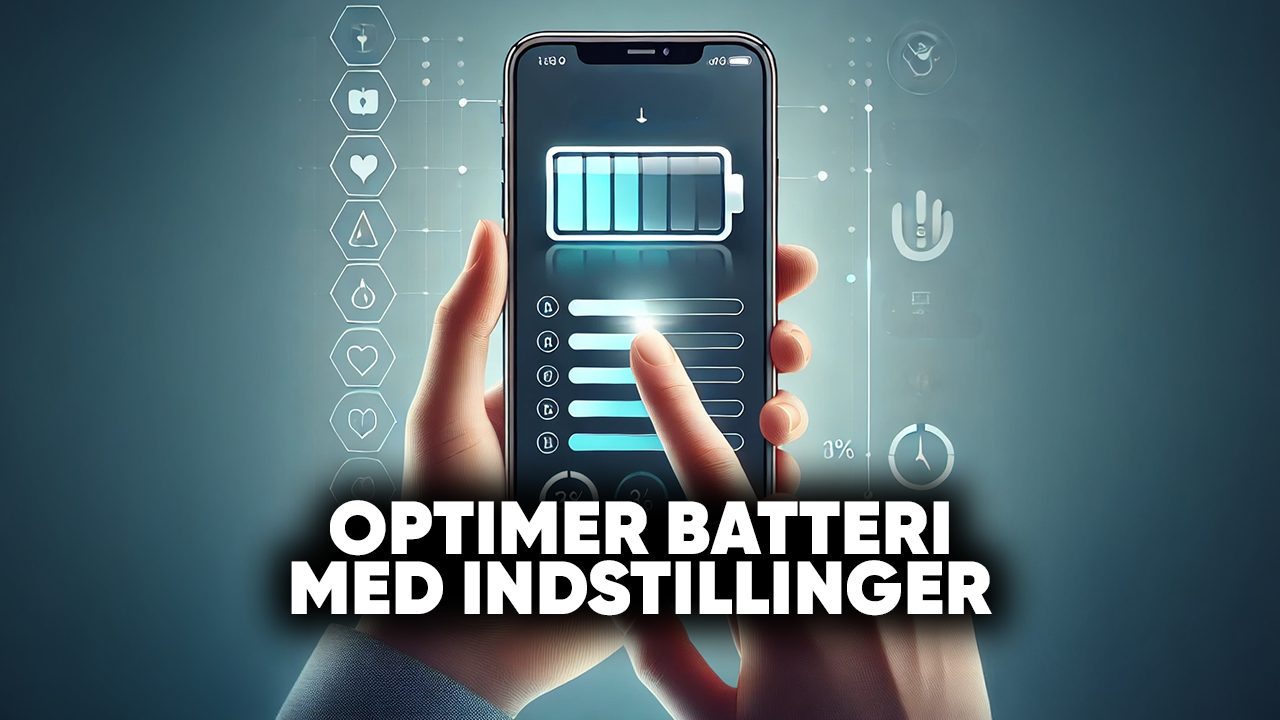
One of the most common challenges when using an iPhone in a busy everyday life is that the battery can quickly run out. Fortunately, there are a number of settings and features that can significantly extend battery life – without requiring you to compromise on functionality.
One of the most effective solutions is to activate Low Power Mode when you know you need your phone to last longer. You can also reduce background app refresh for apps that do not need to run constantly, as well as adjust the brightness or enable automatic brightness.
In addition, you can limit push notifications and use Wi-Fi instead of mobile data whenever possible, as this often uses less power. By optimizing your battery settings, you get an iPhone that lasts longer between charges while maintaining an efficient and well-functioning user experience.
Inspiration List – Smart Settings for Extending Battery Life
🔋 Activate Low Power Mode on your iPhone under Settings → Battery.
📱 Turn off Background App Refresh for apps you rarely use on your iPhone.
💡 Use automatic brightness or manually reduce the screen brightness on your iPhone.
📍 Turn off Location Services for apps on your iPhone that do not need your location.
✈️ Use Airplane Mode in areas with poor reception to avoid excessive battery usage on your iPhone.
📶 Use Wi-Fi instead of mobile data whenever possible to save power on your iPhone.
🚀 Keep iOS updated on your iPhone – Apple often improves battery management in new versions.
Use the Back Tap Feature for Quick Shortcuts on Your iPhone
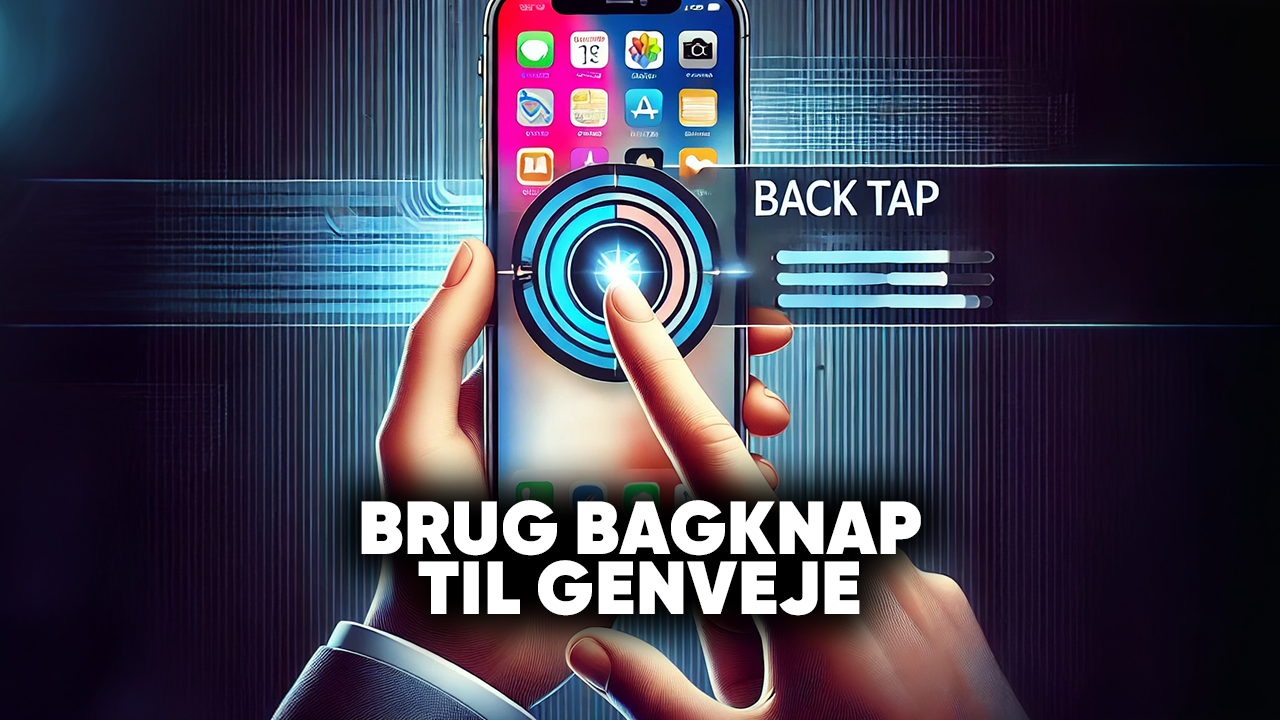
One of the most overlooked yet smart features on newer iPhones is the Back Tap feature. With this feature, you can perform actions simply by tapping the back of your iPhone two or three times. This allows you to customize shortcuts so you can quickly activate features without having to navigate through menus.
The Back Tap feature can, for example, be used to take a screenshot, open Control Center, activate the flashlight, launch a shortcut from the Shortcuts app, or even scroll up and down the screen. It is a practical way to make your iPhone more efficient and tailored to your needs.
You can find the feature under Settings → Accessibility → Touch → Back Tap, where you can choose which actions should be activated with a double or triple tap. This allows you to personalize your iPhone and save time in everyday life.
Inspiration List – Examples of Smart Back Tap Shortcuts on Your iPhone
📸 Take a screenshot on your iPhone with a double tap.
🔦 Turn the flashlight on or off on your iPhone with a quick tap.
🎵 Start your favorite playlist on your iPhone from the Shortcuts app.
📝 Instantly open Notes on your iPhone to save ideas while on the go.
⬆️⬇️ Use Back Tap on your iPhone to scroll up or down in long documents.
🗂️ Open a specific app directly on your iPhone, such as Calendar or Camera.
🚀 Combine it with the Shortcuts app on your iPhone to automate complex actions with a single tap.
Use the Hidden QR Code Scanner Without the Camera App on Your iPhone
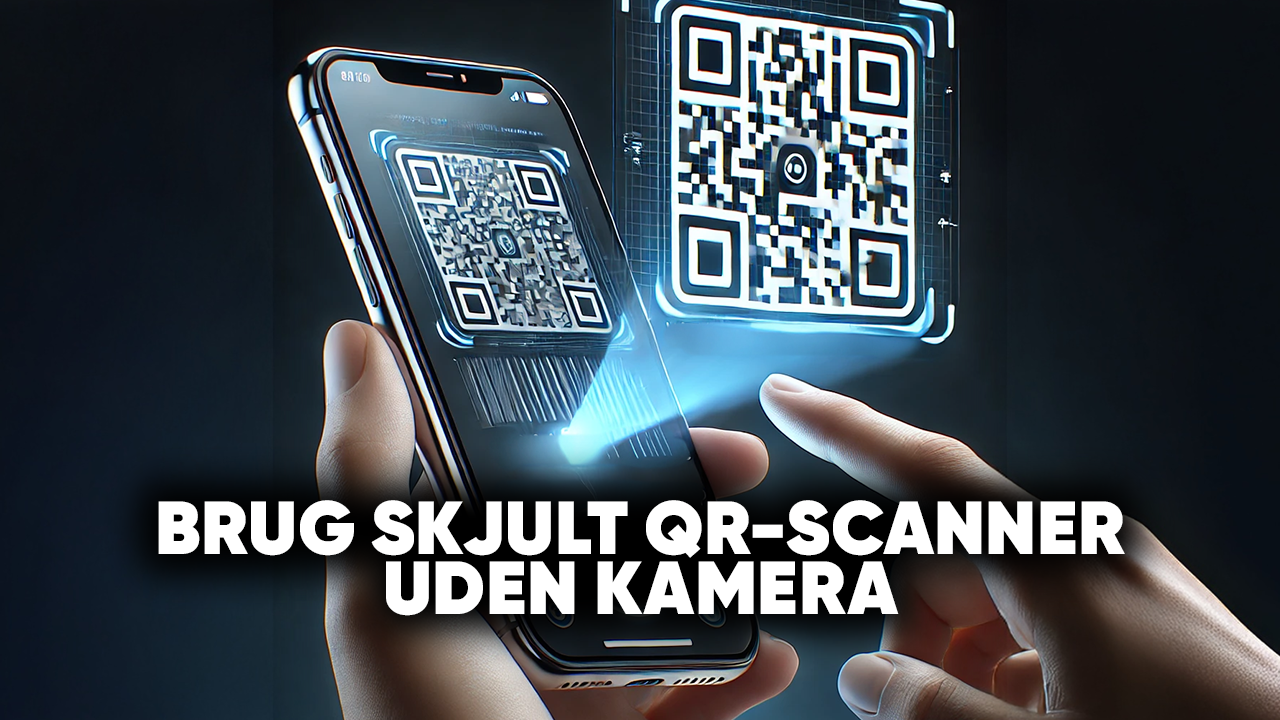
Most iPhone users know that the Camera app can scan QR codes – but many do not know that there is actually a hidden QR code scanner that can be opened without launching the camera. This makes it even faster and more efficient to scan QR codes, for example when opening a link, joining a Wi-Fi network, or downloading an app.
This feature can be found in Control Center, where you can add a QR code scanner as a shortcut. Once activated, you can scan QR codes directly without having to deal with the Camera app or save images. It saves time and makes the process simpler – especially in situations where you need quick access to a QR code. By using this feature, you get a more streamlined experience and make your iPhone even more efficient in everyday life.
Inspiration List – How You Can Use the Hidden QR Code Scanner on Your iPhone
📶 Scan a Wi-Fi QR code on your iPhone to quickly connect to a network.
🍴 Use it at restaurants to open digital menus without delay on your iPhone.
📱 Scan QR codes for apps or games and go directly to the App Store on your iPhone.
💬 Use it for payment links or MobilePay QR codes for faster payments on your iPhone.
🚀 Scan links on posters or flyers with your iPhone without having to take a picture first.
🌐 Use it for quick access to websites on your iPhone without having to type web addresses.
🗂️ Organize your everyday life by scanning QR codes on your iPhone that contain notes, contact information, or calendar appointments.
Customize Control Center on Your iPhone to Suit Your Needs
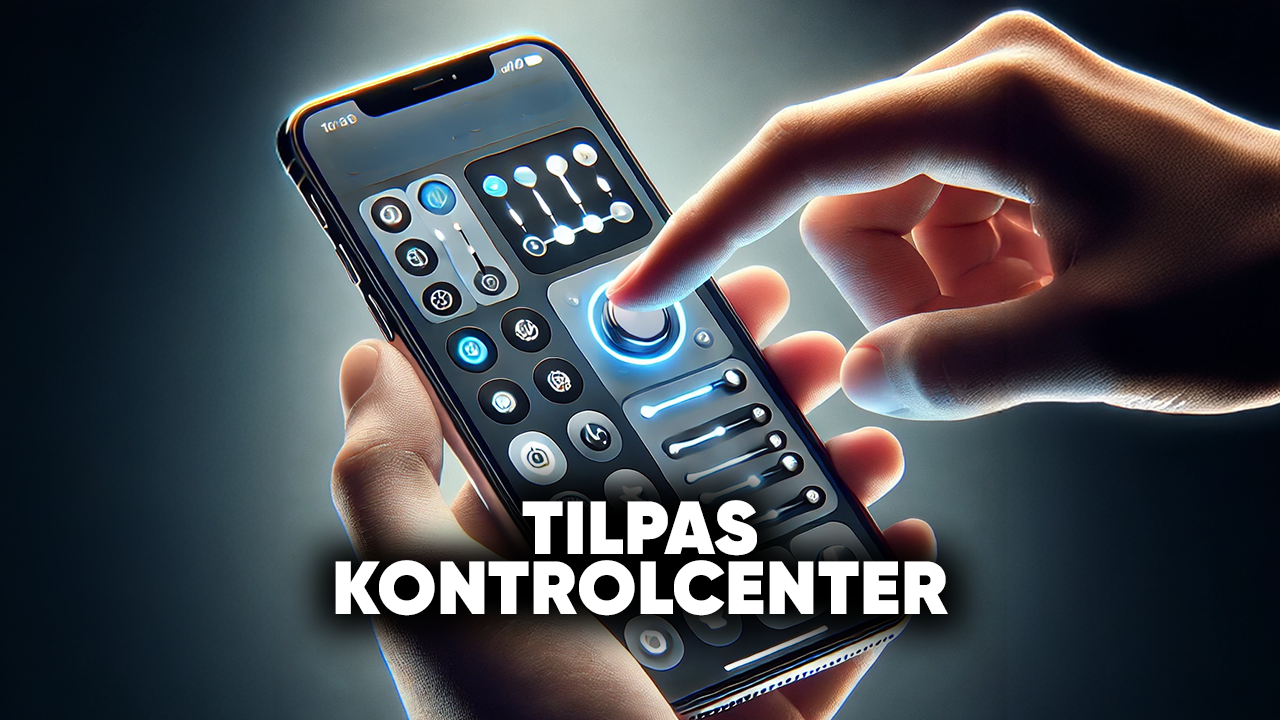
Control Center on your iPhone is one of the most efficient shortcuts for quickly controlling features – but many people do not take advantage of the fact that it can be customized according to individual needs. Instead of using only the standard features, you can choose which shortcuts should be visible so that you always have your most important tools close at hand.
By customizing Control Center, you can, for example, add shortcuts to turn on the flashlight, start screen recording, scan QR codes, open the camera, or control your smart home equipment. You can also change the order so that the features you use most often appear at the top.
This makes your iPhone more personal and much more efficient in everyday life. Because Control Center is always accessible with a single swipe, you save time and taps during daily use – making your iPhone experience smoother and more customized.
Inspiration List – Examples of Useful Shortcuts in Control Center on Your iPhone
🔦 Flashlight on your iPhone – quick access in the dark.
📸 Camera on your iPhone – open the camera without unlocking the screen.
🎥 Screen Recording on your iPhone – perfect for showing or sharing how a feature works.
🔎 Magnifier on your iPhone – use the camera as a digital magnifying tool.
📱 QR Code Scanner on your iPhone – scan codes without opening the Camera app.
🎵 Music controls on your iPhone – quick access to playback and audio sources.
🏠 HomeKit shortcuts on your iPhone – control smart home devices directly from Control Center.
⏱️ Timer on your iPhone – quickly start a countdown without opening the Clock app.
Recover Deleted Messages and Notes on Your iPhone
We all know the situation: you accidentally delete an important message or note and only realize it afterward. Fortunately, the iPhone has built-in features that can help you recover deleted content – often much more easily than many people think.
When it comes to messages, iOS has a folder called Recently Deleted, where messages are stored for up to 30 days before being permanently deleted. From there, you can easily select the messages you want to recover. The same applies to the Notes app, where deleted notes are also temporarily moved to a Recently Deleted folder.
If the content is older or no longer available in these folders, you may in some cases be able to recover it through an iCloud or iTunes backup. However, this requires you to have enabled backups. Knowing about these features can save you both time and frustration – and perhaps rescue important messages or notes you thought were lost forever.
Inspiration List – How You Can Recover Deleted Content on Your iPhone
💬 Check the Recently Deleted folder in Messages on your iPhone – recover messages within 30 days.
📝 Check Recently Deleted in Notes on your iPhone – select and recover notes before they are permanently deleted.
☁️ Use an iCloud backup on your iPhone to recover older messages or notes.
💻 Use an iTunes/Finder backup from a computer if you have created a backup of your iPhone.
🔎 Use Spotlight Search on your iPhone – sometimes notes may still be hidden even after they have been deleted.
📅 Make sure to enable automatic backup in iCloud on your iPhone to prevent data loss in the future.
🚀 Consider exporting important notes or messages from your iPhone so they are backed up outside the app.
Use Siri to Translate Text on Your iPhone
Did you know that Siri can not only help you find information and control your iPhone – but can also work as an effective translator? With the built-in translation feature, you can quickly translate text or sentences to and from different languages without having to open an app or search manually.
For example, you can say: “Hey Siri, translate ‘How are you?’ into Spanish” and receive the answer immediately. Siri displays the translated text on the screen and can also pronounce it aloud, which is especially useful when traveling or communicating with people who do not speak your language.
The feature can also be used in everyday life to learn new phrases, check translations of words, or prepare for meetings and trips. This way, your iPhone becomes a practical language tool that is always close at hand.
Inspiration List – How You Can Use Siri as a Translator on Your iPhone
🌍 Translate short sentences with Siri on your iPhone when traveling abroad.
🗣️ Use Siri on your iPhone to hear the correct pronunciation of foreign languages.
📖 Learn new words or phrases for language practice with Siri on your iPhone.
💬 Translate messages with Siri on your iPhone before sending them to international contacts.
🛫 Use Siri on your iPhone to communicate quickly at restaurants, hotels, or airports.
📝 Quickly check the meaning of foreign words you encounter in texts with Siri on your iPhone.
🚀 Save translated sentences and notes on your iPhone so you have them available for later use.
Lock Sensitive Notes With a Password or Face ID on Your iPhone
Many people use the Notes app to store everything from ideas and reminder lists to personal information. But some notes can be particularly sensitive – such as passwords, private thoughts, or work-related documents. To protect this information, the iPhone allows you to lock specific notes with a password, Touch ID, or Face ID.
When a note is locked, no one can access its contents without the selected security method. This means that even if you share your iPhone with others, your private information remains secure. You can choose to create a specific password for notes, or you can use the same Face ID/Touch ID that you use to unlock your iPhone.
This feature is simple to activate and provides an extra layer of security, allowing you to use the Notes app for more than just everyday things – you can safely store what matters most.
Inspiration List – Examples of Notes You Can Lock for Extra Security on Your iPhone
🔑 You can lock passwords or login information for extra security on your iPhone.
💳 You can lock credit card or banking information for extra security on your iPhone.
📑 You can lock confidential work documents or project ideas for extra security on your iPhone.
📔 You can lock personal diary entries or reflections for extra security on your iPhone.
🛫 You can lock travel information, such as passport numbers or booking details, for extra security on your iPhone.
📱 You can create backups of important codes (such as Wi-Fi or system access codes) for extra security on your iPhone.
🎁 You can lock information about surprises or gifts you want to keep secret from your family for extra security on your iPhone.
Use a Secret Camera Shortcut on Your iPhone
Most iPhone users open the camera by finding the app on the Home Screen – but this is far from the fastest method. Apple has included several smart shortcuts that give you instant access to the camera so you never miss a great photo.
The best-known, but often overlooked, shortcut is the camera icon on the Lock Screen. By simply swiping left or pressing directly on the camera icon, the camera opens immediately – without requiring you to unlock the phone first. You can also add the camera as a Control Center shortcut or use the Back Tap feature (double or triple tap on the back of the phone) to launch the camera directly.
These shortcuts make it easy and quick to capture moments, especially when time is limited. This makes your iPhone an even more efficient tool for both everyday photos and important situations.
Inspiration List – Smart Camera Shortcuts on Your iPhone
📸 Swipe left on the Lock Screen for instant access to the camera on your iPhone.
🔓 Press the camera icon in the bottom-right corner of the Lock Screen on your iPhone.
🎯 Add the camera as a shortcut in Control Center for quick access on your iPhone.
👆 Use the Back Tap feature to open the camera with a double or triple tap on your iPhone.
🎙️ Activate the camera with Siri on your iPhone – “Hey Siri, open the camera.”
🚀 Create a personalized shortcut in the Shortcuts app on your iPhone so the camera opens in a specific mode, such as video or portrait.
🖐️ Use your Apple Watch as a remote control for your iPhone camera – perfect for group photos.
Use Sleep Mode on Your iPhone for Better Sleep
Many people find it difficult to completely unwind as bedtime approaches – especially if notifications and screen light are constantly causing disturbances. This is where Sleep Mode on the iPhone can be a great help. The feature is designed to create a calmer environment when you need to sleep, and it can automatically activate as part of your bedtime settings in the Health app.
When Sleep Mode is activated, the screen is dimmed, notifications and calls are restricted, and only important alarms are allowed through. You can customize which apps or people are allowed to disturb you so you can sleep peacefully without missing important messages.
In addition to creating calm in the evening, Sleep Mode can also help you establish a better sleep routine. By setting consistent bedtimes and wake-up times, the feature supports a healthier circadian rhythm, which can improve both sleep quality and daily energy levels.
Inspiration List – How You Can Use Sleep Mode Effectively on Your iPhone
⏰ Set consistent bedtimes in the Health app so your iPhone automatically activates Sleep Mode.
🌙 Restrict notifications on your iPhone so that only important contacts can reach you at night.
📵 Turn off social media notifications completely on your iPhone while you sleep.
💡 Automatically dim your iPhone screen so your eyes are not exposed to bright light at bedtime.
🛌 Use “Bedtime shortcuts” on your iPhone to, for example, turn on relaxing music or meditation when Sleep Mode begins.
📊 Track your sleep in the Health app on your iPhone and observe patterns over time.
🚀 Combine Sleep Mode with Downtime on your iPhone to avoid the temptation to check your phone.
Hide Photos on Your iPhone From Your Main Gallery
Not every photo needs to be displayed openly in your main gallery. They may be private moments, documents, or pictures that you simply do not want appearing in the middle of your Camera Roll. Fortunately, the iPhone allows you to easily hide photos so they do not appear in the main gallery but are instead stored in a special Hidden album.
When you hide a photo, it is automatically removed from your main gallery and collected in the Hidden album. On newer iOS versions, this album is even locked with Face ID, Touch ID, or a passcode so that only you can access it. This allows you to maintain your privacy without permanently deleting anything.
The feature is easy to use and can give you a cleaner and more personalized photo experience – while keeping your most sensitive or private photos secure.
Inspiration List – Examples of When It Is Useful to Hide Photos on Your iPhone
🔑 Securely store photos of important documents on your iPhone, such as passports or contracts.
👪 Hide personal family or children’s photos from the main gallery on your iPhone.
🎁 Keep photos of gifts or surprises hidden on your iPhone until the right time.
📸 Clean up the gallery on your iPhone by removing “less important” photos from the main view.
🛫 Hide travel documents and tickets on your iPhone so they do not get mixed in with holiday photos.
💡 Maintain privacy on your iPhone when showing your gallery to other people.
🚀 Create a more organized gallery on your iPhone where only the photos you use most often are displayed.
Take Screenshots Without Sound on Your iPhone
When you take a screenshot on your iPhone, a small “camera click sound” is played by default. This is usually harmless, but there may be situations where you want to take screenshots more discreetly – for example, in quiet surroundings, at work, or when you do not want to disturb the people around you.
Fortunately, there is a simple solution: You can turn the sound completely off by activating the silent switch on the side of your iPhone before taking the screenshot. On newer iPhones without a physical switch, you can instead turn the volume all the way down through Control Center.
When the phone is set to silent, screenshots are taken without sound, but the feature works exactly as normal. This little trick makes it easier to use screenshots in everyday life without attracting unnecessary attention – and gives you even more control over how you use your iPhone.
Inspiration List – When It Is Smart to Take Screenshots Without Sound on Your iPhone
📱 Take screenshots without sound when saving settings or information from an app on your iPhone.
🤫 Take screenshots without sound on your iPhone in quiet environments, such as a library or meeting room.
🛫 Take screenshots without sound on your iPhone while traveling when you do not want to disturb other passengers.
📝 Take screenshots without sound on your iPhone when you want to save receipts, messages, or notes quickly and discreetly.
🎮 Take screenshots without sound on your iPhone while gaming so the sound does not interrupt the experience.
👪 Take screenshots without sound on your iPhone when showing something to other people but you do not want the “click” sound to reveal it.
🚀 Take screenshots without sound on your iPhone when creating step-by-step guides or tutorials without adding background noise.
Use Face ID With Sunglasses on Your iPhone
Face ID is a fast and secure way to unlock your iPhone, but many people experience problems when wearing sunglasses. The reason is that Face ID normally scans your eyes as part of its security check. If the sunglasses block this, unlocking can become difficult.
Fortunately, you can change the settings so Face ID works more flexibly – even while you are wearing sunglasses. Under Settings → Face ID & Passcode, you can turn off the Require Attention for Face ID feature. When this feature is disabled, Face ID can recognize your face without having to read your eyes directly, which means sunglasses will no longer get in the way.
This makes it much easier to use Face ID while on the go – whether you are outside in the sun, driving, or simply want to avoid taking off your glasses every time you need to use your iPhone.
Inspiration List – When Face ID With Sunglasses Is Particularly Useful on Your iPhone
😎 Face ID with sunglasses on your iPhone when you are outdoors on sunny days.
🚗 Face ID with sunglasses on your iPhone when driving and wanting to use CarPlay without removing your sunglasses.
🏖️ Face ID with sunglasses on your iPhone at the beach, where you may wear sunglasses throughout the day.
👓 Face ID with sunglasses on your iPhone if you wear dark prescription sunglasses.
🏃 Face ID with sunglasses on your iPhone while running or exercising in the sun when access needs to be quick and easy.
✈️ Face ID with sunglasses on your iPhone when traveling and frequently moving between indoor and outdoor environments.
🚀 Face ID with sunglasses on your iPhone when you want more flexible unlocking without compromising on speed.
Change the Default Browser and Mail App on Your iPhone
For many years, Safari and Apple Mail were the fixed default apps on iPhone, but with newer iOS versions, you have the freedom to choose which apps should automatically open when you click links or email addresses. This means you can customize your iPhone according to your own habits and preferences – for example, using Chrome as your default browser or Outlook as your primary mail app.
Changing default apps can save a great deal of time and make your iPhone more efficient in everyday life. For example, if you work for a company that uses Gmail or Outlook, you can avoid constantly having to manually open links in your preferred app.
In the same way, you can choose a browser that better suits your needs – whether for synchronization across devices or specific features. This small customization gives you a more personalized experience and can make your iPhone much more practical to use for both work and leisure.
Inspiration List – Examples of How You Can Customize Default Apps on Your iPhone
🌐 Customize default apps on your iPhone by setting Google Chrome as your default browser for easy synchronization with your computer.
📧 Customize default apps on your iPhone by choosing Outlook as your default mail app if you work within the Microsoft ecosystem.
📱 Customize default apps on your iPhone by using Gmail as your default mail app if you primarily use Google services.
🔒 Customize default apps on your iPhone by choosing a privacy-focused browser such as Firefox or DuckDuckGo.
🚀 Customize default apps on your iPhone by using a minimalist browser for faster performance, such as Brave.
👨💻 Customize default apps on your iPhone by adapting the mail app to your work habits – for example, Spark for better team collaboration.
🌱 Customize default apps on your iPhone by switching back to Safari and Apple Mail at any time if you want.
Create Animated GIFs With Live Photos on Your iPhone
Live Photos is a feature that automatically records a few seconds before and after you take a photo. The result is small moving clips that bring the moment to life. However, many iPhone users do not know that these Live Photos can easily be converted into animated GIFs, which can be shared on social media, in messages, or saved as fun memories.
You can do this directly from the Photos app by opening a Live Photo, swiping up, and selecting either Loop or Bounce. This gives you a GIF-like effect that can play repeatedly. If you want to create a “real” GIF file, you can also use the Shortcuts app or third-party apps, where you have even more control over the result.
The feature is both fun and practical – you can transform spontaneous moments into small animated memories or create creative types of content that stand out in your communication.
Inspiration List – Ideas for Using Live Photos as GIFs on Your iPhone
😂 Create funny GIFs from Live Photos on your iPhone featuring friends or family and share them in messages.
🐶 Capture small movements from pets with Live Photos on your iPhone and save them as animated memories.
🏞️ Use nature photos as Live Photos on your iPhone, such as waves or sunsets, as relaxing looping GIFs.
🎉 Save party moments as Live Photos on your iPhone as small, lively clips.
📲 Use Live Photos on your iPhone and include them in presentations or social media to make your content more engaging.
📝 Create personal GIFs from Live Photos on your iPhone to use as reactions in message threads.
🚀 Experiment with the “Bounce” effect using Live Photos on your iPhone to create unique and entertaining loops.
Display a Notification Count Instead of Icons on Your iPhone
Notifications can quickly become overwhelming when they fill the entire Lock Screen with icons and small previews. Fortunately, the iPhone allows you to change the display so that you can instead see a count of the number of notifications without displaying all the details.
This feature can be found under Settings → Notifications → Display As, where you can choose Count instead of Stack or List. When Count is activated, you simply see a number showing how many notifications you have instead of being greeted by an entire stream of messages, emails, and app reminders.
This is especially useful if you want a more minimalist appearance on your Lock Screen or want to avoid being constantly distracted. At the same time, it provides an extra layer of privacy because the contents of notifications are not displayed directly until you actively choose to open them.
Inspiration List – Benefits of Using Notification Count on Your iPhone
🔕 Use notification count on your iPhone because it reduces distractions and makes it easier to focus.
👀 Use notification count on your iPhone because it provides more privacy, as message content is not displayed on the Lock Screen.
📱 Use notification count on your iPhone because it creates a cleaner and more minimalist design.
🎯 Use notification count on your iPhone because it helps you prioritize – you see the number but decide for yourself when to check them.
🛌 Use notification count on your iPhone because it works perfectly in combination with Sleep Mode, preventing unnecessary details from waking you.
🚀 Use notification count on your iPhone because it makes your iPhone more efficient by allowing you to control the flow of information yourself.
🌱 Use notification count on your iPhone because it is a good habit for digital balance – you control your notifications, not the other way around.
Use Spotlight for Faster Searching on Your iPhone
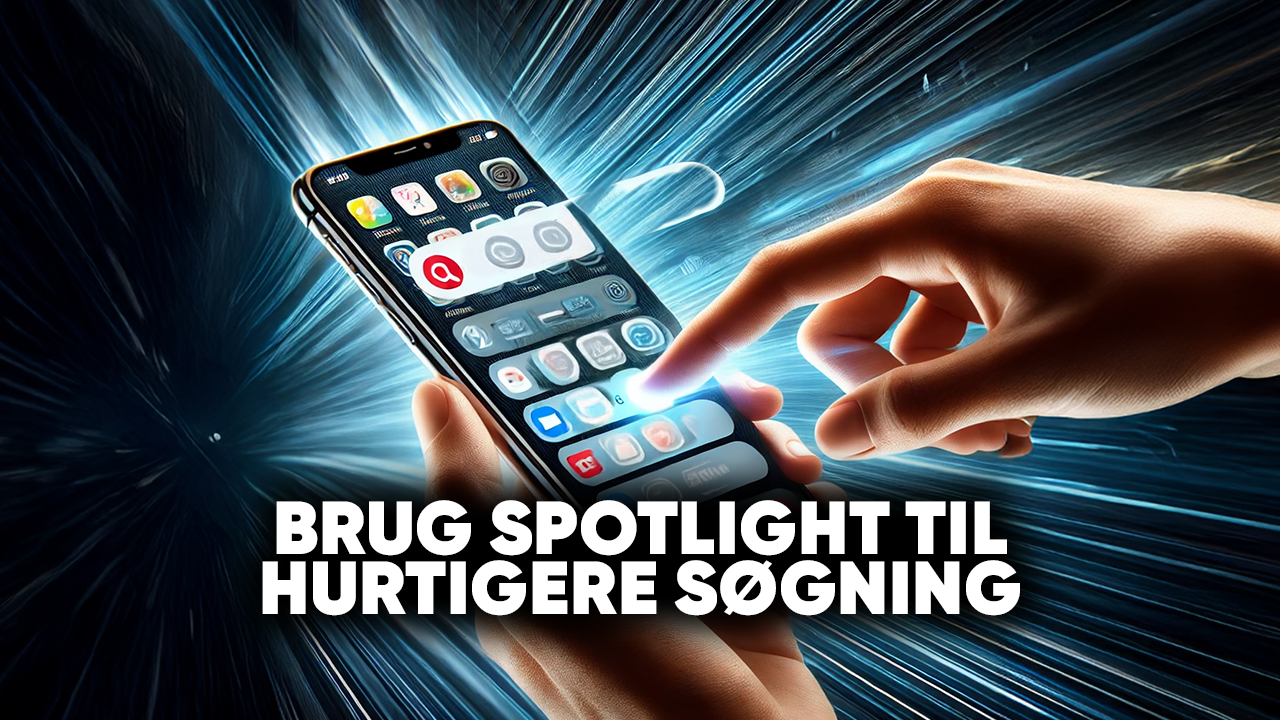
If you have many apps, messages, emails, or notes on your iPhone, it can sometimes be time-consuming to find exactly what you are looking for. This is where Spotlight Search is one of the most effective tools. With a simple swipe down on the Home Screen, you can search across your entire iPhone – quickly and easily.
Spotlight not only gives you results from your apps and files but also from the internet, Siri suggestions, contacts, and even news. You can use it to open apps without scrolling, find a specific message, check calendar appointments, or look up information online.
By mastering Spotlight, you can save time in everyday life and turn your iPhone into an even more efficient work tool. It is one of those hidden features that really makes a difference once you start actively using it.
Inspiration List – Smart Ways to Use Spotlight on Your iPhone
📱 Use Spotlight on your iPhone to find and open apps faster instead of scrolling through pages.
💬 Use Spotlight on your iPhone to search for specific messages in iMessage.
📧 Use Spotlight on your iPhone to access emails by searching for the sender or subject.
📆 Use Spotlight on your iPhone to find calendar appointments without opening the Calendar app.
🌍 Use Spotlight on your iPhone as a quick search engine for the internet.
📂 Use Spotlight on your iPhone to search directly within notes or documents on your iPhone.
🎵 Use Spotlight on your iPhone to find songs in Apple Music or on your device.
📞 Use Spotlight on your iPhone to search for contacts and call them directly from Spotlight.
Use the Magnifier to Read Small Text on Your iPhone
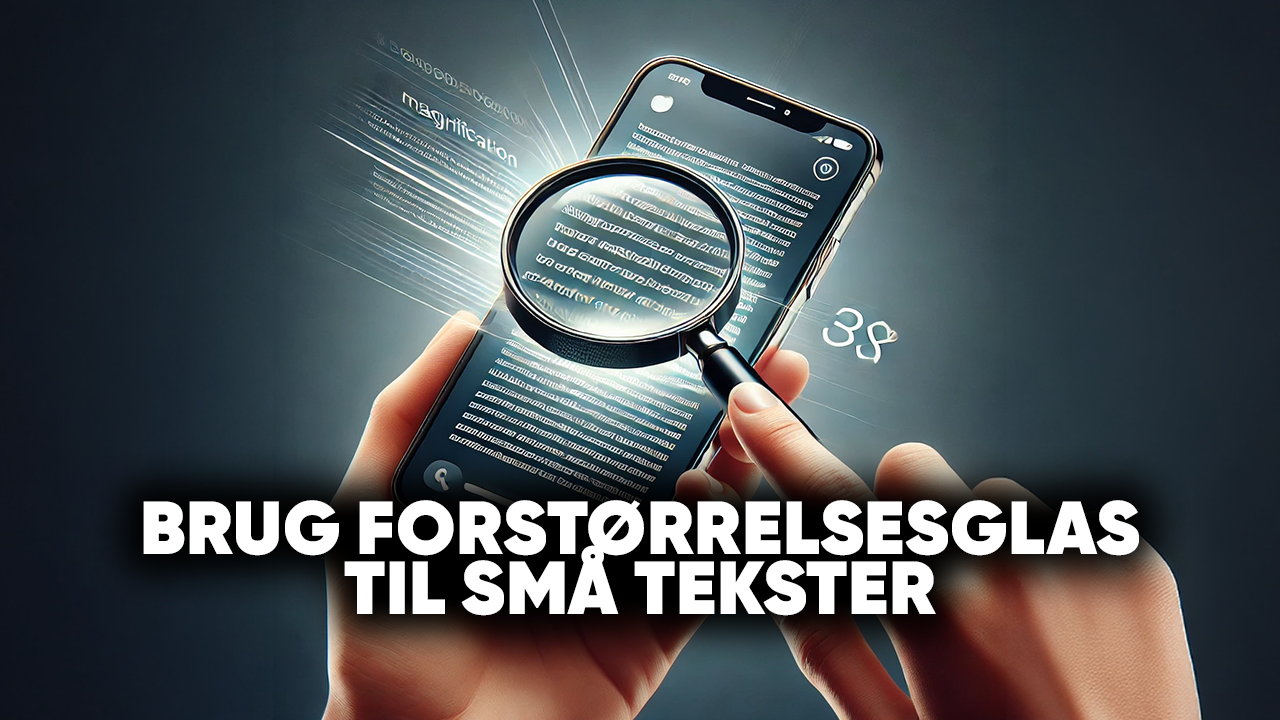
It can be difficult to read small text on things such as packaging, receipts, or documents, but your iPhone has a hidden feature that can help: the Magnifier. When the feature is activated, your iPhone turns into a digital magnifying tool, allowing you to zoom in on details that would otherwise be difficult to see with the naked eye.
The Magnifier uses the camera but functions as a separate app with additional features. You can adjust the zoom level, change the contrast, or use filters that make text clearer. It is especially useful in everyday life if you often encounter small print or if you simply want extra help reading details.
You can activate the feature through Settings → Accessibility → Magnifier, after which it can be opened directly from Control Center or as a shortcut using the side button. It is a simple but effective tool that can make your iPhone even more practical in everyday life.
Inspiration List – Smart Ways to Use the Magnifier on Your iPhone
📖 Use the Magnifier on your iPhone to read small text in books or documents.
🛒 Use the Magnifier on your iPhone to read ingredient lists and nutritional information on food products.
💊 Use the Magnifier on your iPhone to check small labels on medication packaging.
🧾 Use the Magnifier on your iPhone to make receipts and invoices easier to review.
🖼️ Use the Magnifier on your iPhone to examine small details in pictures or printed materials.
🏷️ Use the Magnifier on your iPhone to read price tags in stores without straining your eyes.
🔎 Use the Magnifier on your iPhone with color filters to improve contrast and make faint text easier to read.
Conclusion
Your iPhone contains far more features than most people discover in everyday life. These small, hidden tools can make a big difference in terms of efficiency, privacy, and ease of use – whether it involves hiding apps, optimizing the battery, using shortcuts, or activating smart accessibility features.
By exploring and using these features, you can customize your iPhone even better to suit your own needs and habits. This means spending less time searching for solutions and more time on what truly matters in your everyday life.
Remember that the key to a more efficient iPhone is not always new apps or major updates – often, the secret lies in the features that are already built in. Once you know about them, your iPhone becomes not just a tool but an even smarter and more personalized assistant in everyday life. 📱✨
Mini-Guide – How to Get an Overview of Smart Features on Your iPhone
This mini-guide is a summary of the article above and gives you a clear and practical overview of how to best discover and use hidden iPhone features. The focus is on specific areas of your phone where smart iPhone features can save you time, make everyday life easier, and improve the efficiency of your iPhone.
The guide is designed as a simple helper that makes it easier to get started exploring the many built-in iPhone features that are often overlooked. With a little curiosity and the right tips, your iPhone can quickly become even more efficient to use.
📱 Explore the Basic iPhone Features
The first step toward getting to know your iPhone better is curiosity. Many users stick to the same few apps and do things the way they have always done them. By taking the time to explore built-in iPhone features, you can discover shortcuts that make navigation faster and your workflow smoother. Look around in Settings, try new menu options, and see what happens when you hold your finger down on different icons. Small discoveries can lead to major improvements in everyday life.
🔍 Learn to Use Search Effectively for iPhone Features
Your phone has a powerful search feature called Spotlight. If you get into the habit of searching for iPhone features instead of manually browsing around, you can open contacts, messages, emails, and documents within seconds. This makes your iPhone more efficient and saves you time every day. Enter a keyword in the search field, and you will often gain access to both content and smart system features you did not know existed.
⚙️ Customize Your Phone With Advanced iPhone Features
Personal customization is an important part of the experience. There are many hidden iPhone features that only become truly useful when they are configured according to your needs. These can include automatic replies, special notification settings, or intelligent shortcuts in Control Center. When you customize the built-in options on your iPhone, it works better with your everyday life and routines.
✍️ Become Faster With Hidden Keyboard Features on Your iPhone
The keyboard is full of little tricks. You can shake the phone to undo text, hold down the space bar to freely move the cursor, or swipe quickly to type numbers and special characters. These iPhone features make it easier and faster to write messages and emails. Once you master the keyboard tricks, you can communicate much more efficiently from your iPhone without installing additional apps.
📞 Use Practical Assistance Features as Part of Your iPhone
Your iPhone has a wide range of assistance features that can make daily use easier. These include allowing Siri to perform tasks for you, using dictation instead of typing, or setting up automatic routines through Shortcuts. By using these smart iPhone features, you can let your phone handle more of the work and make your iPhone more efficient.
🔋 Optimize Battery and Performance With Smart iPhone Features
Efficiency also means making sure your phone runs well. There are several advanced iPhone features that can improve both battery life and general performance. You can turn off Background App Refresh for selected apps, use Focus to reduce power consumption, and clear unnecessary processes. When you learn about these iPhone features, your iPhone lasts longer and works faster in everyday use.
🗺️ Make Use of Smart iPhone Features in Everyday Life
There are plenty of possibilities hidden within the apps you already use. Maps, Notes, Photos, and Messages all contain hidden iPhone features that can make them more efficient. These can include quickly sharing your location, scanning documents directly in Notes, or using advanced editing in Photos. By making use of smart iPhone features in everyday life, you can make your iPhone more efficient without any additional expense.
*******************************************************************************
✅ Here Are 3 Useful Hidden iPhone Features You Should Try First Based on Our Guide
📂 Hide Unwanted Apps or Photos on Your iPhone - For a cleaner and more private layout of the photos and content on your iPhone.
🔋 Optimize Battery Life on Your iPhone - With smart settings on your iPhone such as Low Power Mode and Background App Refresh.
🚀 Use the Shortcuts App and Back Tap Feature on Your iPhone - With this feature, you can automate and customize your iPhone according to your needs.
***********************************************************************************
If you need more tips for your iPhone, you can watch this video - 20+ Hidden Features Your iPhone Had All Along
------------------------------------------------------
If you have experience and/or knowledge of useful but lesser-known iPhone features that can make your phone more efficient, we would be happy to hear your input and/or suggestions in the comments about other useful iPhone features that can make the phone more efficient, allowing users to make optimal and more effective use of their phone’s features every day.